
Install & Approve System Extensions
Get Netspector running on macOS 14.0+ in under two minutes: move the app to /Applications, approve FilterExtension and PacerExtension in System Settings, and verify zero-MITM protection.
Requirements & Distribution Channels
Netspector is a universal macOS application (arm64 Apple Silicon and x86_64 Intel) requiring macOS 14.0 Sonoma or later. You can install it via the signed and notarized Direct Download (.dmg) or the Mac App Store.
macOS refuses to activate System Extensions launched from ~/Downloads or a mounted disk image. If you installed from the .dmg, drag Netspector.app into /Applications before opening it.
- FilterExtension (NEFilterDataProvider): Inspects only the first
<= 4 KBof each connection in RAM to identify the signed app, protocol, and SNI/Host, enforces Allow/Block rules, and drops out of the data path. - PacerExtension (NETransparentProxyProvider): Claims only flows matched by an active Throttle rule (
return falsezero-copy bypass for everything else) and smooths bandwidth with a Hierarchical Token Bucket.
Step-by-Step System Settings Approval
On first launch, Netspector opens the Setup Assistant (Welcome to Netspector) automatically. Because Netspector runs in your menu bar (LSUIElement), you can also reopen the Setup Assistant anytime from the Menu Bar popover under More actions (•••) → Setup Assistant… or Settings → Extensions.
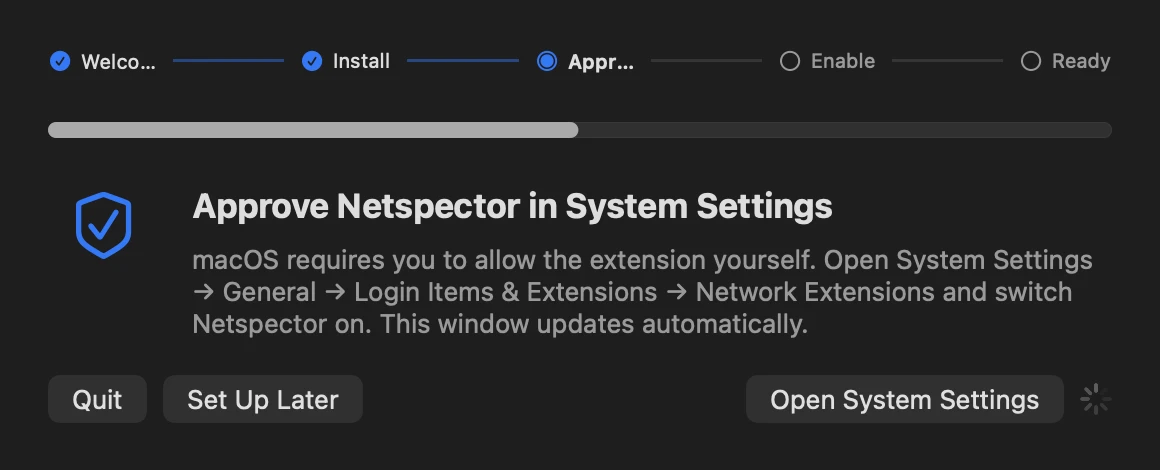
- Click Install Extension
In step 1 of the Setup Assistant, click Install Extension to submit the activation request to macOS
sysextd. - Allow in System Settings
Click Open System Settings (or navigate to System Settings → General → Login Items & Extensions → Network Extensions) and switch Netspector on. macOS prompts for Touch ID or your administrator password.
- Wait for Automatic Advance & Enable Filter
Activating the extension can take up to 30 seconds. The Setup Assistant polls cleanly and advances automatically—click Enable Filter when prompted to grant the local filter configuration.
- Verify Protecting Status
Confirm the menu bar shield turns solid and the Menu Bar popover displays Protecting in green.
Netspector never installs a root certificate into your System Keychain, never decrypts HTTPS/QUIC payloads, and never routes traffic to any remote server. If an extension ever restarts or hits a handshake edge case, flows fail open so your internet stays online.
Verifying Live Inspection & Pacer Activation
Once FilterExtension is active, live connections appear immediately in the Menu Bar popover and Inspector (⇧⌘I). When you create your first Throttle rule (or enable pacing in Settings → Extensions), Netspector activates PacerExtension using the same Network Extensions toggle.
